
You can download all your data in Showoff into a CSV or XLS file. You can do a one-off download or you can save and schedule a report to be run at a set frequency. You will get a notification email when this report is ready. Any filtering or layout settings will be applied to the data as the report is created.
Data you can export:
- Exhibitor
- Speaker
- Campaign trackers
- Libraries - products, news, press releases etc
- Forms
- Polls
- Categories
ONE-OFF DOWNLOAD
NOTE: The example below uses exhibitor data, but the process is the same for all data
STEP 1.1
Go to Reports > Scheduled Reports.
STEP 1.2
Select Exhibitor (or other data) from the drop-down towards the bottom of the page.
Then click on the VIEW REPORTS button.
If you have some previously saved reports you will see them on the next page, just click on the report to load it and carry on with the steps below.
STEP 1.3
To see all the vertical columns of data available to export on each exhibitor (each exhibitor/form/seminar etc. is a line of data) click on the EDIT LAYOUT button.
From here you can select and move (use the drag and drop + symbol) the data you want to show in the report. If you want to download it all, click on CHECK ALL at the bottom of the popup.
Remember to APPLY LAYOUT.
STEP 1.4 (optional)
Next, you can apply some filters to the report to exclude data and refine your results.
Just click on the EDIT FILTERS button. On the example below the report will only include people whose country field contains "United Kingdom":
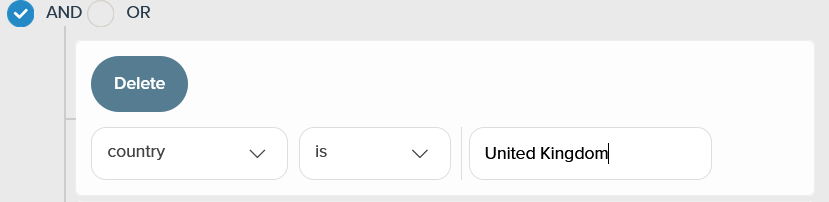
Some data, such as an exhibitors profile, may contain some HTML. Check the "Strip HTML:" button before hitting APPLY if you want this to happen. This is useful when exporting to companies that will be using the data for print.
STEP 1.5
To export your data click on MORE (it's in the top right of the screen) button and select
- Export as CSV
or - Export as XLS
You should see all the data start to download or a pop up depending on what browser you are using.
SAVE AND SCHEDULE
If you have applied a layout and/or a filter to your report it's worth saving the report to save you time in the future.
STEP 2.1
From the MORE drop down simply select SAVE & SCHEDULE FILTER:
STEP 2.2
On the next screen give your report a name, something clear so you can find it in the list mentioned in STEP 1.2 above. If you don't want to schedule this report then just select CREATE NEW REPORT:
STEP 2.3
If you schedule a report you will get an email each morning of the set frequency with a link to download the report. For security reasons, you will need to login to Showoff. Click on the "Schedule" tab and complete the relevant details:
- Schedule name: A name to help you recognise the data being sent to you
- Repeat frequency*: Choose from daily, weekly or monthly
- Start date: date to start sending the report
- End date: date to stop sending the report
- Cumulative: Leave ticked to send all records. Untick to only send records since the last report run.
- Cumulative From: Send cumulative data from this date to now. Leave as-is to send all data.
- Email To: Who to send the report to, it will default to your email address, but you can add others, just type the email and then select it. Remember, for security reasons they must be able to login to Showoff.
Click on CREATE NEW REPORT to save you set up.
TIPS:
- If you want to view, edit, run or delete a previously saved report just choose SAVED FILTERS from the MORE drop down
- If you want to view, edit, run or delete a previously saved scheduled report just choose SAVED FILTERS from the MORE drop down
- Select SCHEDULE HISTORY from the MORE drop down to view previously sent reports
Comments
0 comments
Please sign in to leave a comment.